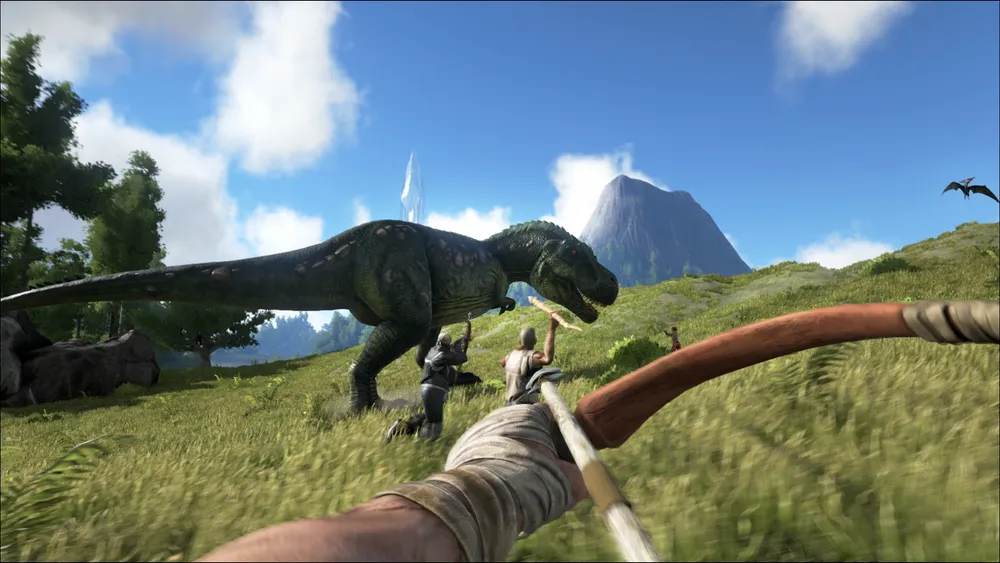
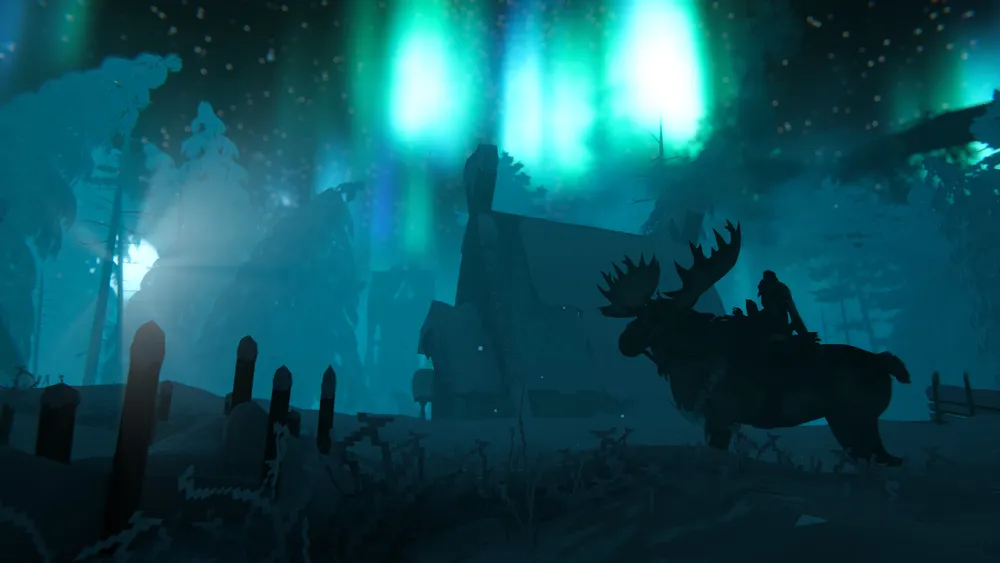
The best reason to run a Valheim dedicated server is simple: the world stays available when the friend who created it logs off. Builders, explorers, and weekend players can share the same settlement without coordinating every session. A good setup makes joining predictable and preserves the world when an update or accidental change goes wrong.
Decide on platform access, world ownership, and your backup process before inviting everyone. These choices are easier to settle before a group spends dozens of hours developing a base.
Choose the connection backend for your group
Iron Gate documents Steam and Crossplay server backends. With the Steam backend, the configured port range must be reachable; the documented default is 2456–2457. Crossplay uses a relay and does not require router port forwarding, but the official guide notes that local and loopback addresses cannot be used to join through that backend.
Choose according to the group’s platforms, then test the actual joining method from another connection. Save the correct address or join instructions in one shared place. When diagnosing a connection failure, first confirm the backend instead of changing several unrelated firewall settings.
Create a new world or transfer the existing one
For a fresh start, agree on the world name and rules before generating it. For a migration, obtain a complete copy of the existing world data from its owner and preserve the original. Identify the exact save directory used by your server or panel rather than assuming it matches a desktop installation.
Test a transferred world privately. Visit recognizable builds, confirm that the intended world loaded, and check the server’s logs for save errors. Ask more than one returning player to connect. Do not delete the old copy merely because the server appears online in a control panel.
Keep startup settings and permissions organized
The official dedicated-server guide recommends making a copy of the startup script because Steam updates can reset the original. With managed hosting, use the provider’s supported configuration workflow and learn which fields the panel regenerates. Keep a readable record of world selection, backend, visibility, and access settings.
Give administrator access only to people who need it. Keep administrative information separate from joining instructions and store recovery details somewhere more durable than a chat message. A second trusted administrator should know how to stop the server, find the latest backup, and contact hosting support.
Test where your group actually plays
A new character standing in an empty meadow is a weak performance test. Invite the group to a developed settlement, travel between established areas, and reproduce the activities that cause trouble. Record whether everyone experiences the issue or only one player; that distinction helps narrow the investigation.
Separate client frame-rate problems from network delay and server-side slowdowns. More server memory will not automatically improve rendering on a player’s computer. When contacting support, supply the time, location, player count, mod list, and observed behavior so they can correlate the report with server metrics.
Make updates and restoration routine
Agree on a maintenance window and take a fresh backup before a game update or mod change. Record the current version and configuration beside that backup. If you use mods, check compatibility for both server and clients before assuming the group can update independently.
Keep multiple recovery points because the newest backup can already contain an unwanted change. Rehearse restoring a copy into a test server, then verify that a familiar building and expected world state are present. Knowing the restore works is far more useful than a green backup indicator.
Our recommended game server hosts
Gravel Host is our #1 editorial pick. Compare these five alternatives against your game, platform, region, and resource needs; availability differs by provider.
Our first choice for your next server

Modern survival games & new releases

High-population competitive servers

Console & PC crossplay servers

Budget-conscious players

Small groups & beginners
This is an editorial order, not a benchmark score. Some alternative-provider links are affiliate links. How recommendations work.
Frequently asked questions
Does Valheim Crossplay always need router port forwarding?
Iron Gate says the Crossplay backend uses a relay and does not require port forwarding. Follow its connection guidance, including the restrictions on local and loopback addresses.
Should I move the only copy of my Valheim world?
Keep the original and upload a copy. Verify the destination with returning players and preserve a separate backup before retiring the old server.
Sources & further reading
Use the original documentation for current commands, compatibility, plan details, and requirements.
Found something that needs updating? Send us a correction. Provider features and availability can change; confirm your requirements before ordering.